
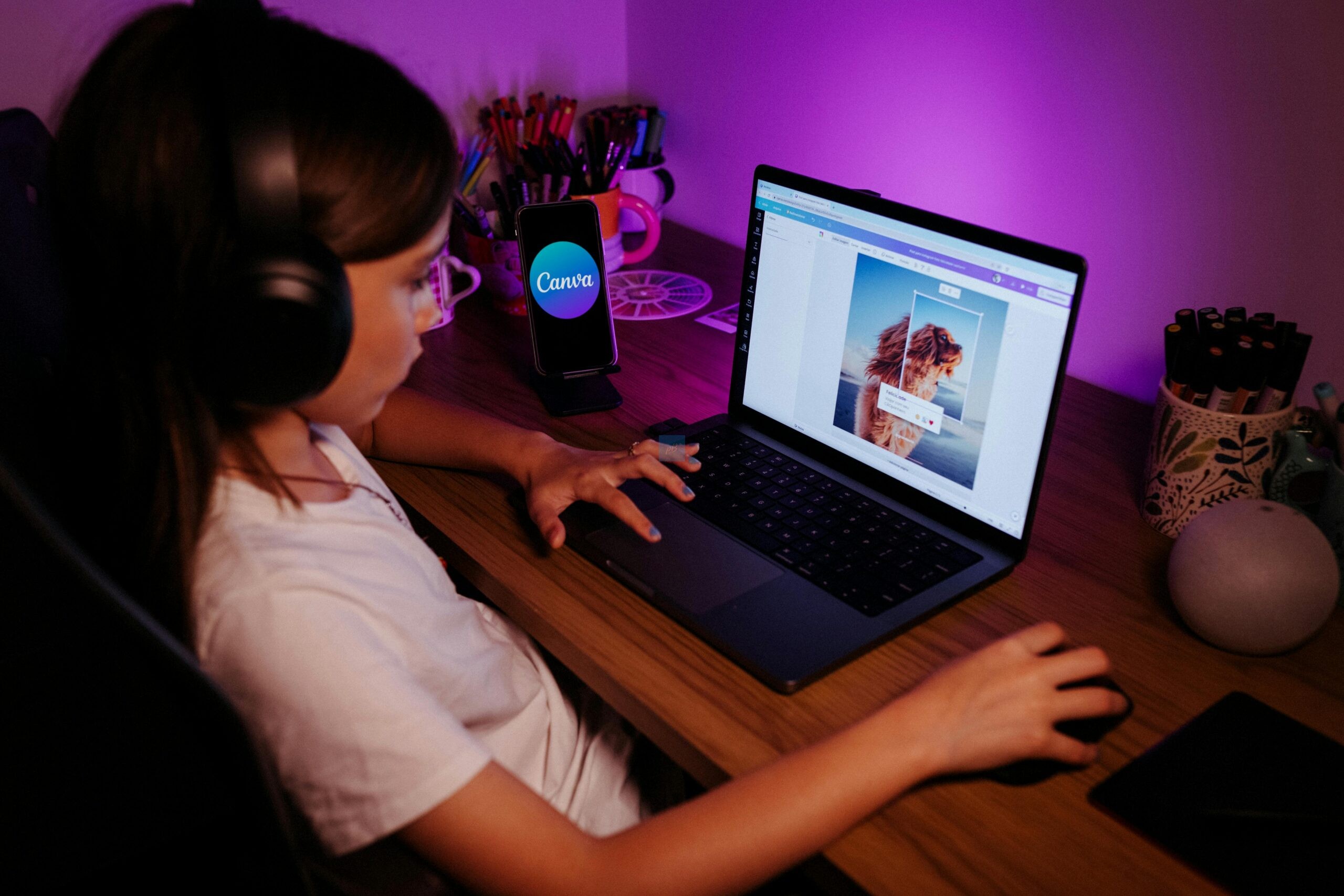
PPT Design for Students: It is seen that in today’s academic world, making a creative and innovative presentation is as important as writing a good assignment. Whether it’s a college seminar, school project, or any competition, the presentation that you give will create a positive or negative impression of you. This is the reason mastering the PPT design for students has become an important skill.
With the help of tools such as Canva and PowerPoint, students now have the option to create more professional, creative, and easy-to-use design features, which helps the student to stand out. This blog will help you learn about the practical ways and different strategies that help in creating an impressive presentation that will help in grabbing attention and scoring better marks. This blog will also help in understanding different PPT design for students more effectively.
ALSO CHECK: School Projects and Models: All Over India Delivery
Why PPT Design Matters for Students?

When a presentation is well designed, it not only uses information to display, but it also tells a story. Evaluators or tutors not only look at the content you wrote, but they also check how creatively and clearly you have presented it.
Many studies have suggested that the visuals in the presentation are important; otherwise, many audiences lose focus quickly during presentations.
Advantages of good PPT designs are:
- Improve clarity of ideas
- Increase audience engagement
- Showcase professionalism
- Make your project memorable
PowerPoint vs. Canva: Which is Better?
Before understanding different designing tips, first let us understand two most popular tools for making a presentation—
PowerPoint
- Ideal for detailed academic presentations
- Offers advanced features like animations and transitions
- It works offline and is widely accepted
Canva
- Beginner-friendly with ready-made templates
- Offers modern, visually appealing designs
- Allows quick drag-and-drop editing
Best Strategy: It is better to use Canva for designing and PowerPoint for the final delivery.
10 Essential PPT Design Tips for Students
- 1. Keep It Simple and Clean
Do not add too much text in your slides or even use too many graphics. When a simple design is made, it is easy to understand and is more impactful.
Usually, experts recommend using less text and more focus on visuals, which helps in improving engagement.
- 2. Use One Idea Per Slide
Every slide should communicate a particular point. This not only helps structure your presentation but also makes it easy to follow.
- 3. Maintain Consistency
Consistency is key in PPT design for students.
Make sure to use:
- Same font style
- Same color palette
- Same layout
This creates a professional look and smooth flow throughout the presentation.
- 4. Choose the Right Fonts
When it comes to readability, the font plays a major role.
Tips:
- It is advised to use a single font.
- Keep font size at least 30 pt for visibility
- Avoid decorative fonts in formal presentations
- 5. Use Visuals Instead of Text
Charts, icons, and images should be present in your slide, as it helps the slide to look more engaging instead of long paragraphs.
It is also observed that the audience understands visual presentations more clearly, and it even makes them interested in that particular discussion.
- 6. Follow the 20-20 Rule
Try to:
- Keep your presentation under 20 slides
- Limit duration to around 20 minutes
This rule helps in maintaining attention as well as ensuring that the presentation is concise and engaging.
- 7. Use a Consistent Colour Scheme
Choose 2–3 colours and stick to them throughout your presentation.
Avoid:
- Neon colors
- Too many contrasting shades
A uniform color palette makes your slides look professional.
- 8. Add Interactive Elements
Engage your audience by:
- Asking questions
- Adding quizzes
- Using clickable elements
Interactive presentations are more memorable and impactful.
- 9. Use Templates Smartly
Canva, as well as PowerPoint, offers different types of templates that can be used for making a presentation.
- Use them as a base
- Don’t rely on them completely
Always remember to customize templates according to your topic and the style.
- 10. Practice Visual Hierarchy
Highlight important information using:
- Bold text
- Larger font sizes
- Strategic placement
This helps evaluators quickly grasp key points.
How to Use Canva for PPT Design?
Canva can be considered the best option for those who want visually appealing presentations without putting in much effort.
Steps:
- Choose a presentation template
- Customise text and images
- Use icons, graphics, and animations
- Maintain consistent design
- Download as PPT or present directly
Canva also helps in offering transitions, sharing options, and presenter view, which all make it a powerful tool for making a presentation.
How to Use PowerPoint Effectively
PowerPoint is now also considered one of the most popular and widely accepted tools for presentations, which are used in colleges and schools.
Key Features to Use:
- Slide Master for consistent design
- SmartArt for diagrams
- Animations for better storytelling
- Charts for data representation
Common Mistakes to Avoid
Even the best content can fail if the design is poor. Avoid these mistakes:
- Too much text on slides
- Overuse of animations
- Inconsistent fonts and colours
- Low-quality images
- Reading directly from slides
Pro Tips to Impress Evaluators
Want to stand out? Follow these advanced tips:
- Start with a strong title slide
- Use storytelling techniques
- Add real-life examples
- Include data and visuals
- End with a powerful conclusion
Remember, your presentation should feel like a story, not just a collection of slides.
ALSO CHECK: MBA Assignment Help Online at Project Banao
Conclusion
Mastering PPT design for students does not mean just being able to make the slides or the presentation, but it also means how effectively ideas can be communicated. You can take the help of tools such as Canva and PowerPoint, where professional and engaging presentations can be created that are visually appealing without hiring any design experts.
If you specifically focus on consistency, creativity, and simplicity, then there are large chance that you will be able to impress the evaluators as well as score better marks.
Now remember, the next time you are preparing any presentation, don’t just focus on the content, but also focus on the design. As it is said, when the PPT is well-designed, it is not only engaging but also leaves a lasting impression.
FAQs on PPT Design for Students
- 1. For the PPT design for students, which is the best tool: Canva or PowerPoint?
Both tools can be considered excellent when it comes to PPT design for students. It can be said that Canva can be the best option for those who want visually appealing presentations quickly; on the other hand, PowerPoint could be an ideal option for academic presentations.
- 2. What are the ways in which PPT design for students could be made more attractive?
Students can improve their PPTs by using high-quality images, minimal text, readable fonts, and consistent colors. Visuals such as icons, charts, and infographics can also be added through presentations to look more engaging and also help in impressing the evaluators.
- 3. What are the common mistakes to avoid in PPT design?
Some common mistakes include overcrowded slides, too many animations, inconsistent design, and reading directly from slides. Keeping the presentation simple, clear, and visually balanced is key to effective PPT design for students.
Leave a Reply